
How to Turn OBS Replays into YouTube Shorts
Published
An OBS replay becomes a useful YouTube Short when the viewer can understand the moment without watching the whole stream. Start with one clear event, preserve the context it needs, reframe it for a phone, and check the final upload. Simply exporting a landscape replay as a taller file does not solve the storytelling or framing problem.
For current uploads, YouTube accepts square or vertical Shorts up to three minutes long.12 A 9:16 edit is a practical choice for a phone-oriented workflow, but it is not the only aspect ratio YouTube classifies as a Short.
1. Choose a moment with its own beginning and ending
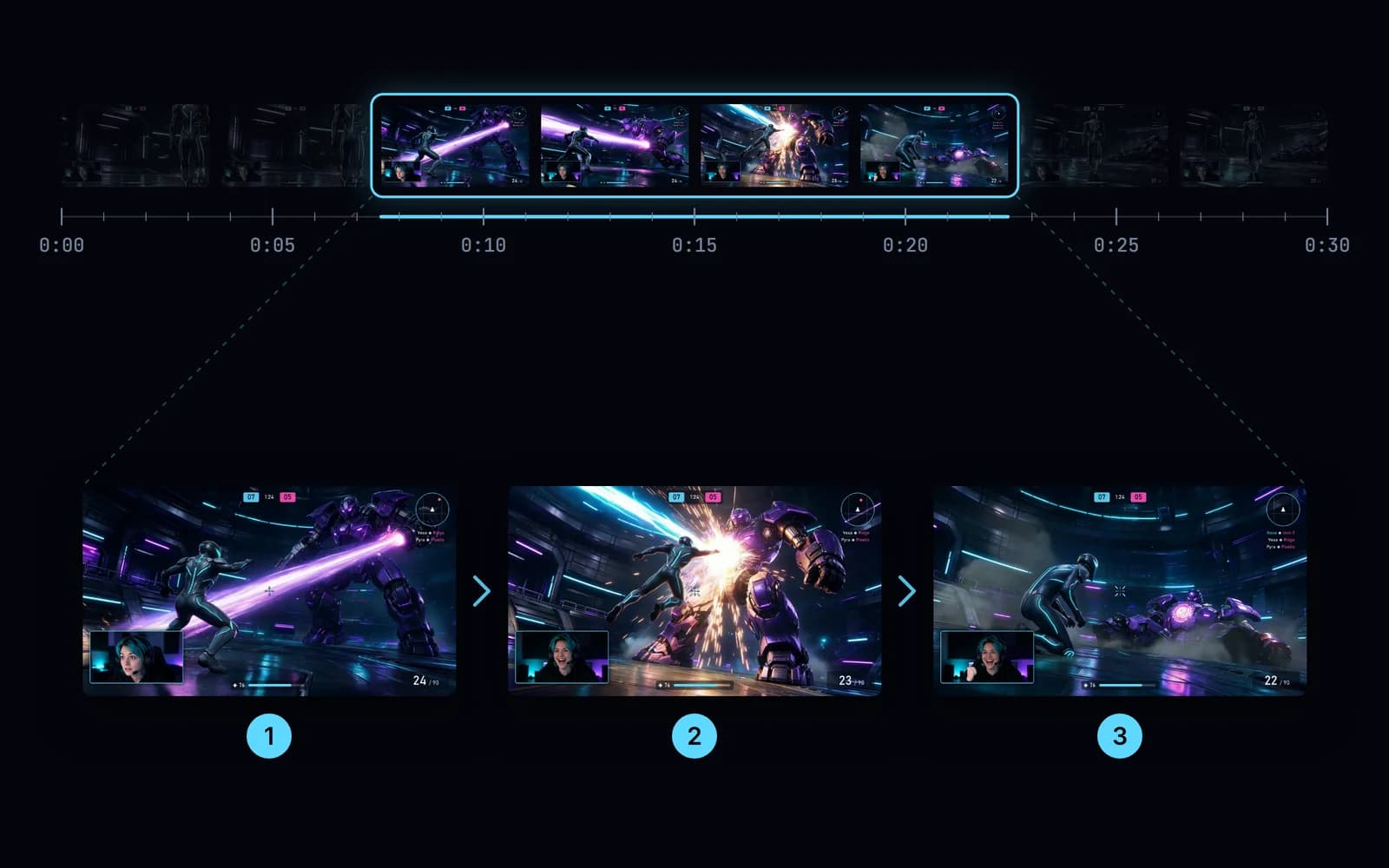
Watch the replay once without editing. Identify the setup, the action, and the payoff. A clutch might need the remaining-player count; a funny reaction might need the sentence immediately before it. Keep the smallest amount of context that makes the outcome understandable.
For example, build a practice edit around an opponent appearing, a decision, and the result. This is an editorial exercise, not a promise that a particular structure will increase views. Remove waiting and unrelated menu navigation before adding effects.
If you still need a reliable source file, use OBS Replay Buffer setup.
2. Keep the original and prepare an editable copy
Preserve the saved replay so you can change the crop or recover a line later. Import a copy into your editor. If the container is incompatible, OBS offers File → Remux Recordings for moving compatible recordings into another container.3
Remuxing is not the same as re-encoding, changing the aspect ratio, or fixing a codec your editor cannot decode. If the source opens but a sound is missing, inspect its audio tracks before starting the edit.
3. Build the vertical composition
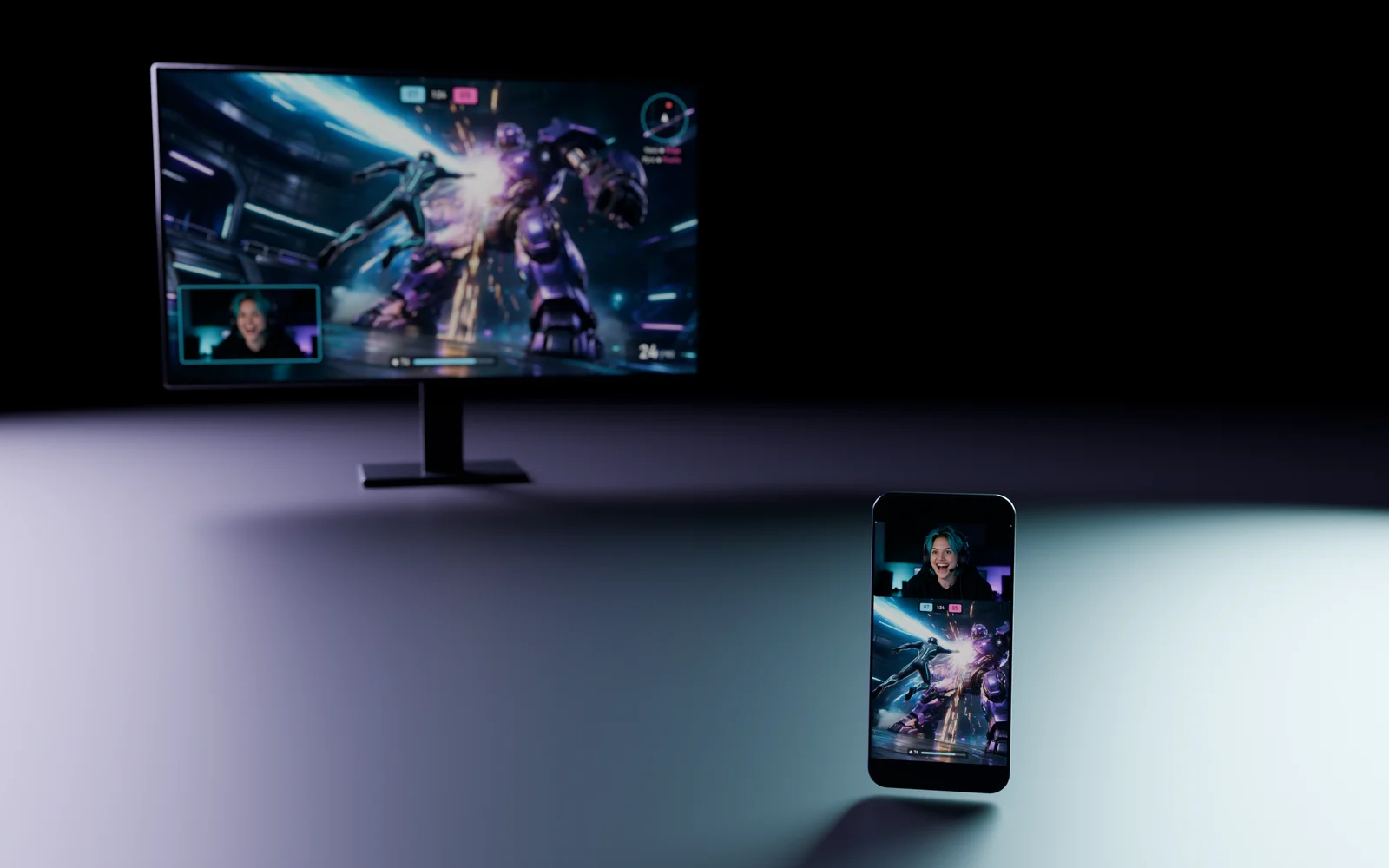
Create a 9:16 project; 1080 × 1920 is an example working canvas. Choose between cropping around the action, fitting the landscape picture inside the portrait frame, or using a split layout for gameplay and webcam.
Do not stretch the game to fill the new shape. Scrub through the entire clip, because a crop that works on the first frame may hide the opponent a second later. Keep the information that explains the play, even if that means a smaller gameplay window.
The 16:9 to 9:16 guide compares those layout choices and their trade-offs.
4. Make the clip understandable with and without sound
Listen to the voice, game effects, and any music separately if your source allows it. Aim for intelligible speech rather than making every track equally loud. Keep the reaction that belongs to the moment, but remove accidental background noise where possible.
Add captions for meaningful speech, then check names, game terms, timing, and punctuation. Do not let the captions cover the crosshair or the result of the play. See captions for gaming Shorts for a practical review process.
Use audio and footage you are entitled to publish. An active Content ID claim may lead to restrictions, including blocking the Short.2 A short duration does not by itself give permission to use unlicensed material.
5. Export and inspect the actual file
For a straightforward YouTube export, MP4 with H.264 video and AAC audio is a documented option. Keep the recorded frame rate rather than manufacturing extra frames, and inspect the result after export.4
Check the beginning, a fast action sequence, and the ending. Look for softened text, frozen frames, distorted scaling, missing audio, and captions cut by the frame edge. Export settings cannot restore detail that was never present in the source.
6. Upload, then review the platform version
In YouTube Studio, choose Create → Upload videos, select the file, and complete the video details.1 Write a title that describes the actual game moment. Do not claim an impossible result or stuff unrelated game names into the title.
Choose the audience and visibility settings accurately. Check the processed upload before making it public. To publish later, use YouTube's scheduling option and verify the date, time, and time zone.5
Where Clador Forge fits
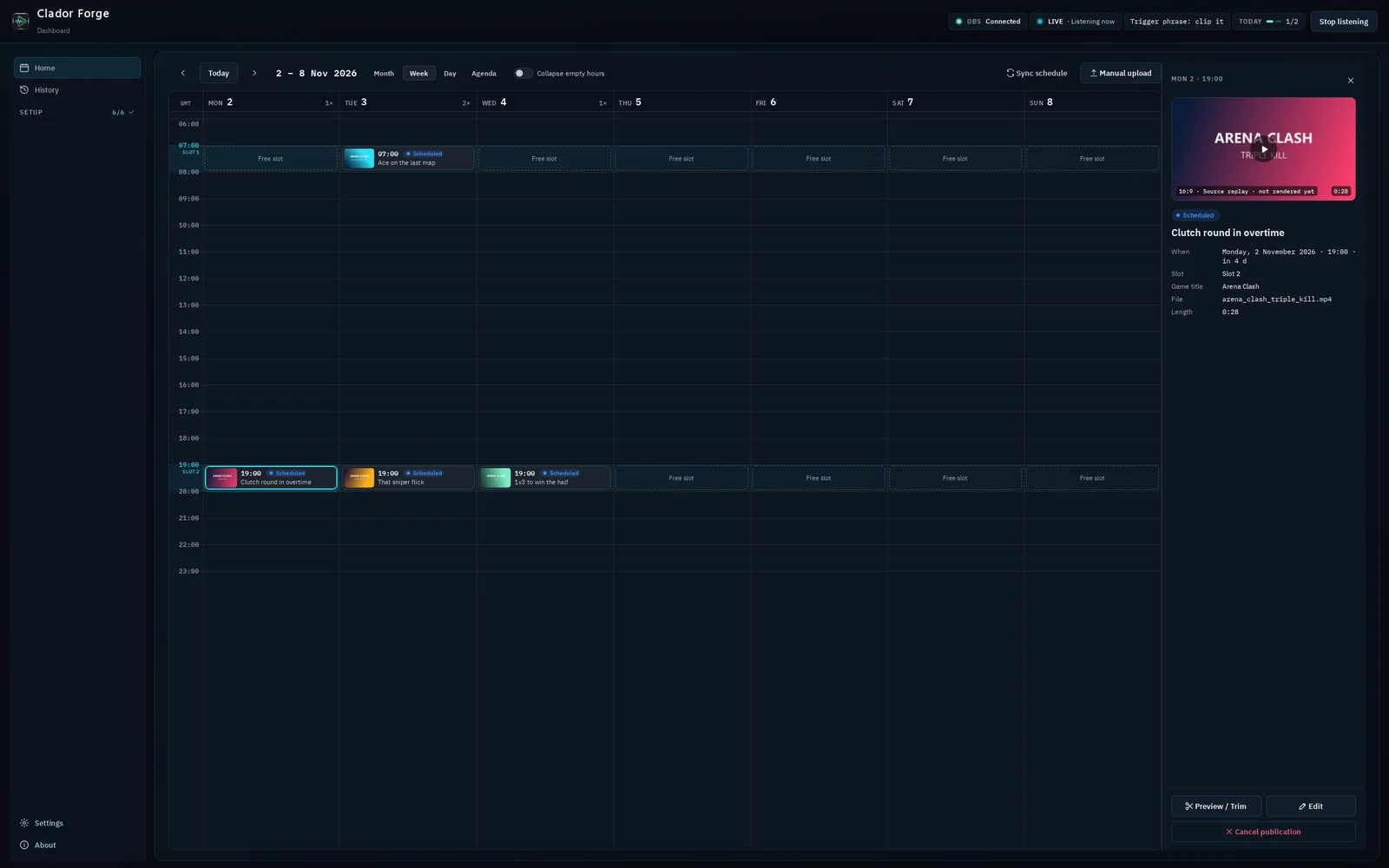
Clador Forge makes a vertical short from the saved moment. It places your gameplay and webcam, adds captions, and writes a title, a description and hashtags. The short appears as a card in the app's calendar, at the next free publishing time. If today's times are taken, it goes to the next free one. At the scheduled time, the short is published automatically: you do not need to press anything. Clador Forge schedules the same Short for your connected social networks, not just YouTube: one network on Creator Starter or up to four on Creator Pro. If you want, click a short's card in the calendar to watch it, trim it, or change its time, title or description. Changes are possible until 30 minutes before the publishing time. After that, the short is being prepared and editing closes. You remain responsible for what is posted.6 A short can be up to 30 seconds long on Creator Starter and up to 90 seconds on Creator Pro; a clip that exceeds your plan's length limit waits in the calendar until you trim it to fit that limit. See the product guide and the plans.
Frequently asked questions
Does adding #Shorts make a horizontal video a Short?
Do not rely on a hashtag to change the file's classification. Prepare a square or vertical upload that meets YouTube's published requirements.1
Should every replay use the full three-minute allowance?
No. That is an upper limit, not an editorial target. End when the moment is complete.
Can the same master serve other platforms?
Often it can be the starting point, but review each destination's requirements and presentation. Follow the cross-platform scheduling guide rather than assuming one identical post fits every platform.