
How to Convert Gameplay from 16:9 to 9:16
Published
To convert 16:9 gameplay into 9:16, place the landscape recording in a portrait project and choose how to reframe it. Cropping, fitting, and split-screen layouts solve different problems. Stretching the picture is not a useful substitute: it changes the proportions of the game and webcam.
Start with the action you need viewers to understand. Then choose the layout that preserves that information, rather than selecting a template and hoping the important parts remain visible.
Understand the unavoidable trade-off
A wide scene does not fit a narrow frame at full size without losing content or leaving unused space. For illustration, a 1920 × 1080 source cropped to 9:16 while retaining its full height uses only about 608 pixels of its original width. That is a geometric example, not an export recommendation.
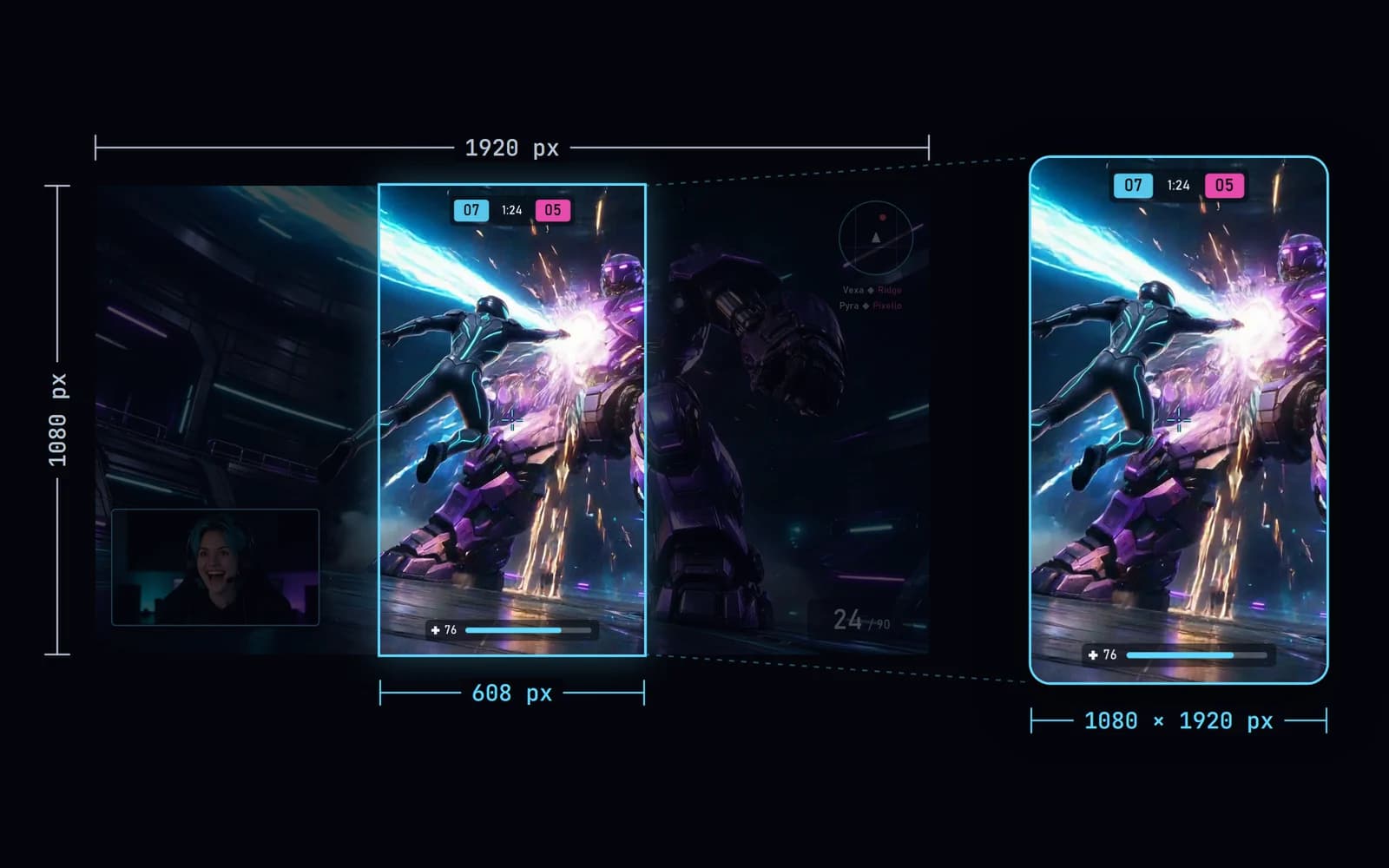
Enlarging that narrow crop to 1080 × 1920 does not create new captured detail. A crisp source helps, but text and distant targets can still become soft. Always judge the final composition at phone size.
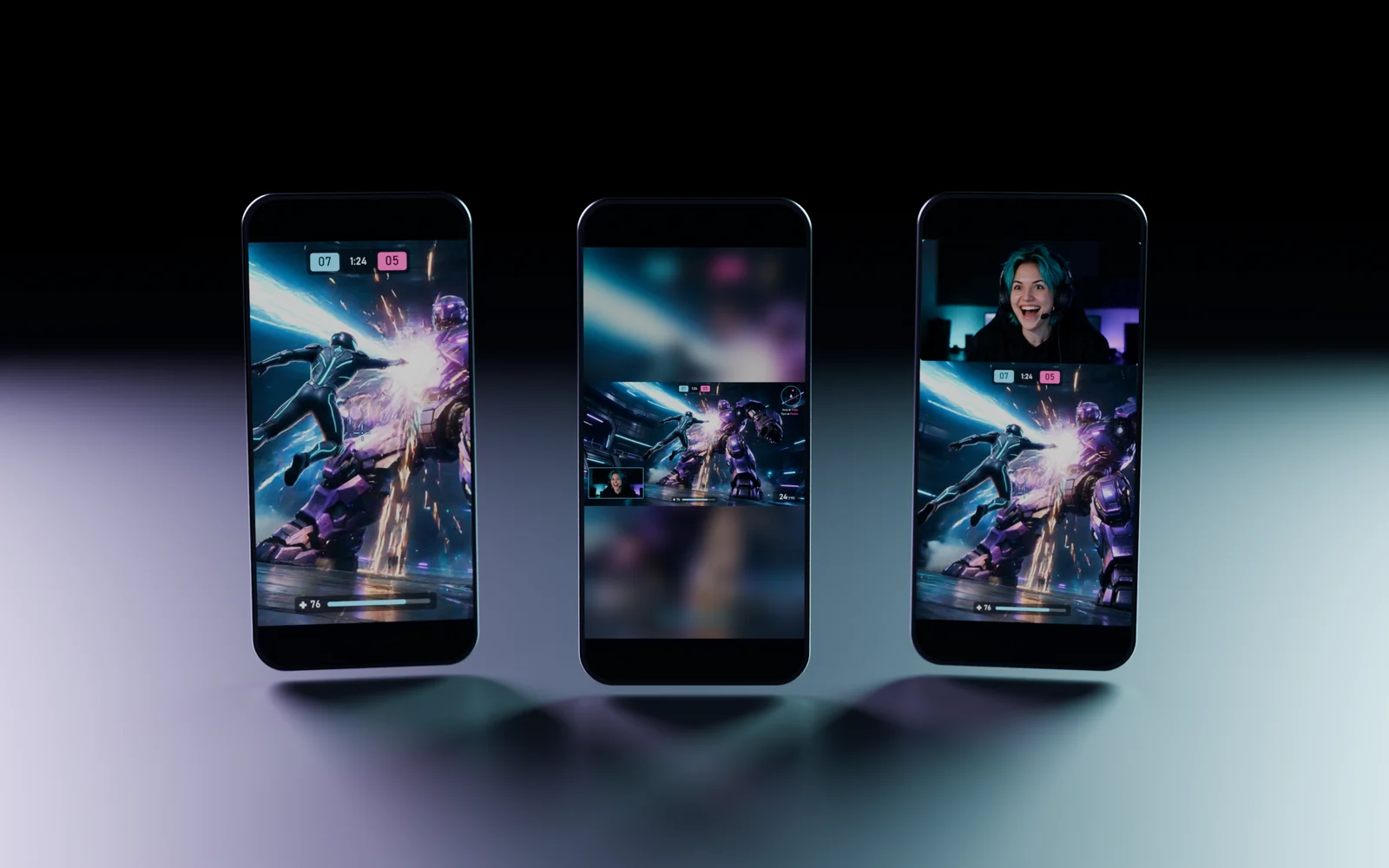
Choose between three practical layouts
| Layout | Useful when | Main compromise |
|---|---|---|
| Crop around the action | The important event stays near one area | Side information can disappear |
| Fit the full landscape image | Several parts of the screen matter at once | The gameplay appears smaller |
| Split gameplay and webcam | The reaction helps explain the moment | Each region receives less space |
These are editorial choices, not platform ranking rules. YouTube accepts vertical and square Shorts; a 9:16 canvas is a convenient format, not a requirement to discard useful game information.1
Reframe step by step
- Duplicate the original file or edit non-destructively so the source stays intact.
- Create a portrait project, for example 1080 × 1920.
- Add the gameplay and preserve its aspect ratio while scaling.
- Choose crop, fit, or split-screen based on the moment.
- Scrub through the entire action, not just the opening frame.
- Add captions and other text only after the composition works.
- Export a test and view it on a phone before preparing the final version.
For a crop, move the visible region when the subject leaves it. Avoid frantic reframing that forces the viewer to track the crop as well as the game. If too many elements matter simultaneously, fitting the whole game may be clearer than chasing each target.
Keep the information that explains the play
Check the crosshair, opponent, score, minimap, objective, and relevant messages. Not every HUD element is necessary in every clip, but do not remove the only information that makes a decision understandable.
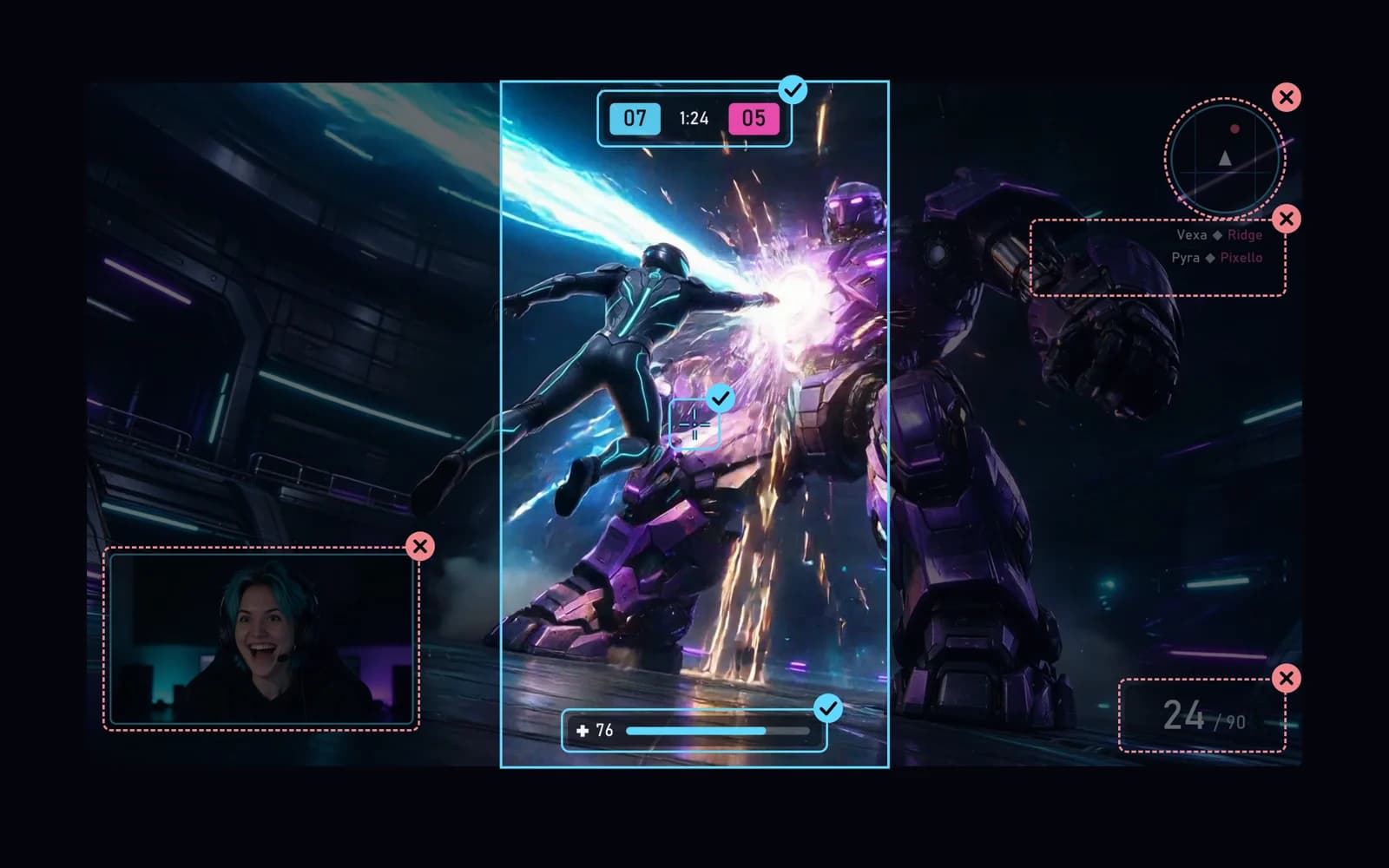
For example, a tactical moment may rely on the minimap, while a reaction-focused clip may rely on the facecam. Make that decision explicitly. If the clip becomes confusing without a missing element, change the layout or add a short factual explanation.
Do not present a reframed event in a way that falsely changes its meaning.
Handle webcam and captions separately
If the webcam is already baked into the source, enlarging and repositioning it may require a duplicate crop of the same recording. That does not recover the gameplay hidden behind the original webcam box. Separate source recordings offer more freedom, but they are not something an editor can reconstruct afterward.
Place captions where they do not cover the action. Leave comfortable space from the edges and inspect each platform's preview, because interface elements vary. There is no single fixed safe-zone rectangle that covers every device and every platform layout.
Use readable gaming captions and check the audio path before final export.
Export without confusing dimensions and quality
A taller resolution describes the output frame; it does not guarantee a sharper image. Keep the source frame rate when practical, choose a supported codec, and compare the exported clip with the source. YouTube's encoding guide recommends retaining the recorded frame rate and documents H.264/MP4 options.2
Avoid repeatedly downloading and re-exporting social-platform copies. Keep your original master and derive destination versions from it so you retain control over framing and text.
Using Clador Forge
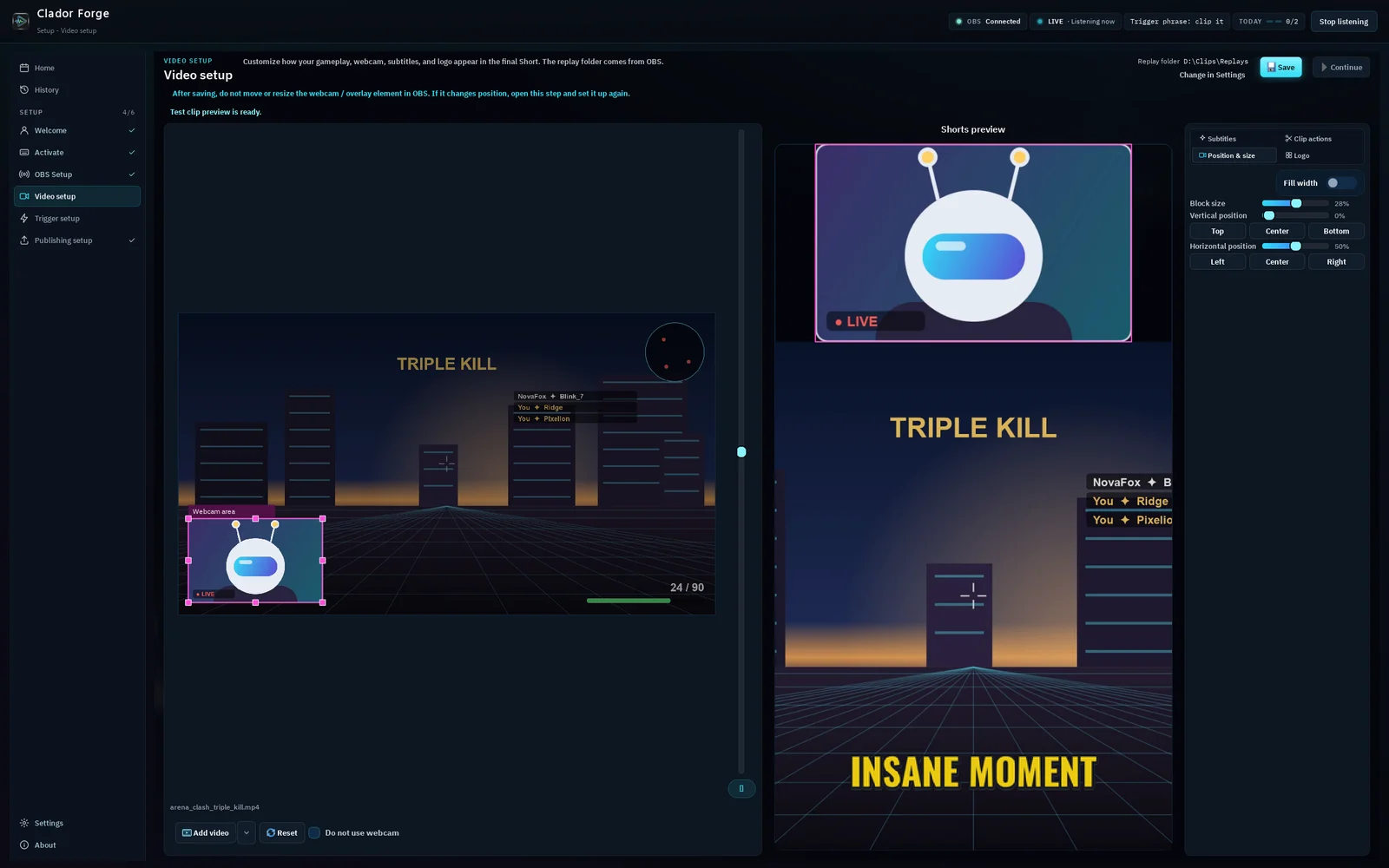
Clador Forge makes a vertical short from the saved moment. It places your gameplay and webcam, adds captions, and writes a title, a description and hashtags.3 You choose the layout once, in the app's Video setup step: mark where your webcam sits in the OBS picture, then set its size and position, the subtitle style and the logo. A Shorts preview shows the vertical result.4 If you later move or resize the webcam in OBS, open that step and set it up again.
Captions are made automatically: you can pick their style, but not edit their text. Each short appears as a card in the app's calendar and is published automatically at its time. Clador Forge schedules the same Short for your connected social networks, not just YouTube: one network on Creator Starter or up to four on Creator Pro. If you want, click the card to watch the short, trim it, or change its time, title or description until 30 minutes before publishing. You can cancel a short until it is published.3 The product guide explains the workflow; How to Turn OBS Replays into YouTube Shorts covers the whole publishing sequence.
Frequently asked questions
Is cropping always better than adding background space?
No. A smaller but understandable full image can be better than a large crop that hides the crucial action.
Can a blurry crop be fixed by exporting at a higher resolution?
Higher output dimensions do not recreate missing source detail. Try a less aggressive crop or a different composition.
Should the webcam always be at the top?
No. Place it according to the game interface and the role of the reaction. Check the final mobile preview rather than following one layout rule for every game.