
How to Save Gameplay Clips with One Hotkey
Published
To save recent gameplay with one hotkey, run OBS Replay Buffer and assign a key to Save Replay. Pressing that shortcut preserves footage already captured by the buffer; it is not the same as starting a new recording after the highlight.1
The aim is a shortcut you can use without opening menus during a match. Reliability matters more than choosing a clever key combination, so test the full routine before a competitive session. Menu names below follow the English interface of OBS 32; in another version they may differ slightly.
Understand what the key actually does
A useful capture workflow has three separate stages: start buffering before play, save a moment when it happens, and edit the saved file afterward. The shortcut in this guide handles the second stage.
This distinction prevents a common planning mistake: assigning Start Recording and expecting the previous minute to appear in a file. A start-recording action captures the session from that point onward; a replay-save action uses the running buffer.
If you have not configured Replay Buffer yet, start with the OBS Replay Buffer setup guide.
Set up the native OBS shortcut
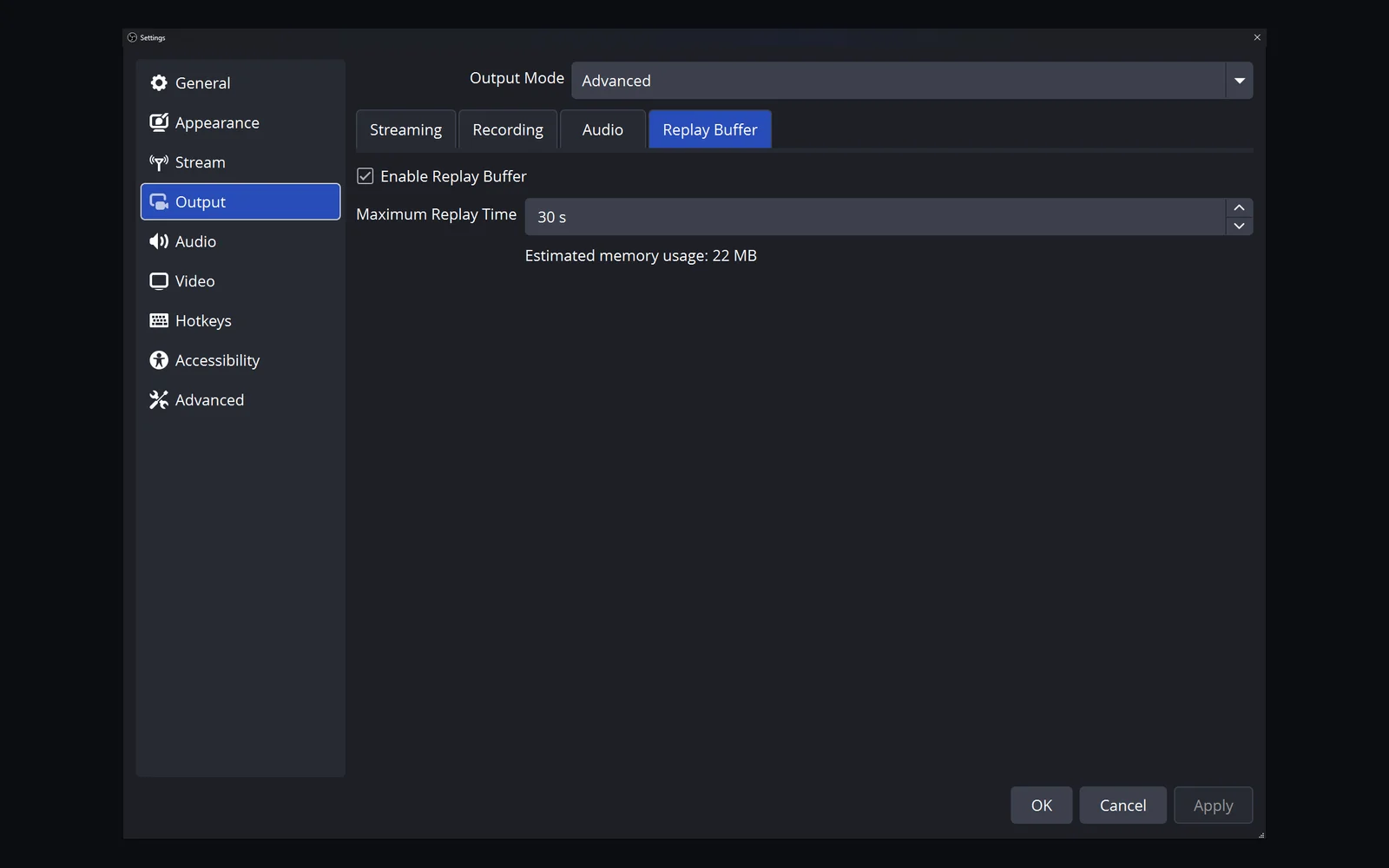
- Open Settings → Output, enable Replay Buffer, and apply the settings.
- Open Settings → Hotkeys and find Save Replay.
- Choose a key or combination that is not used for an important game command. An unused function key can be a test candidate, not a universal recommendation.
- Apply the shortcut, close settings, and click Start Replay Buffer in the Controls panel.
- Wait for some gameplay to be captured, press the shortcut once, and open the newly saved file.1
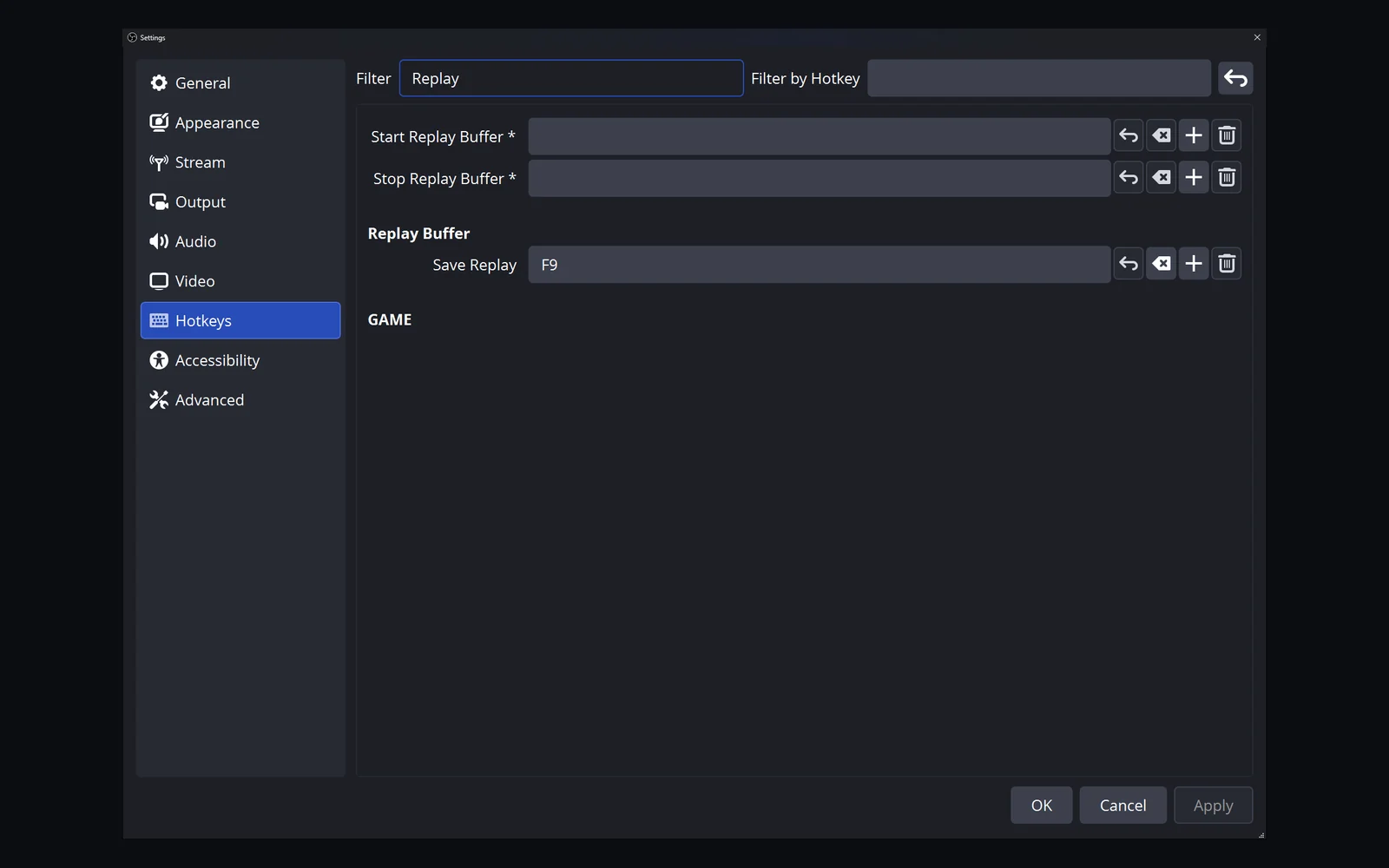
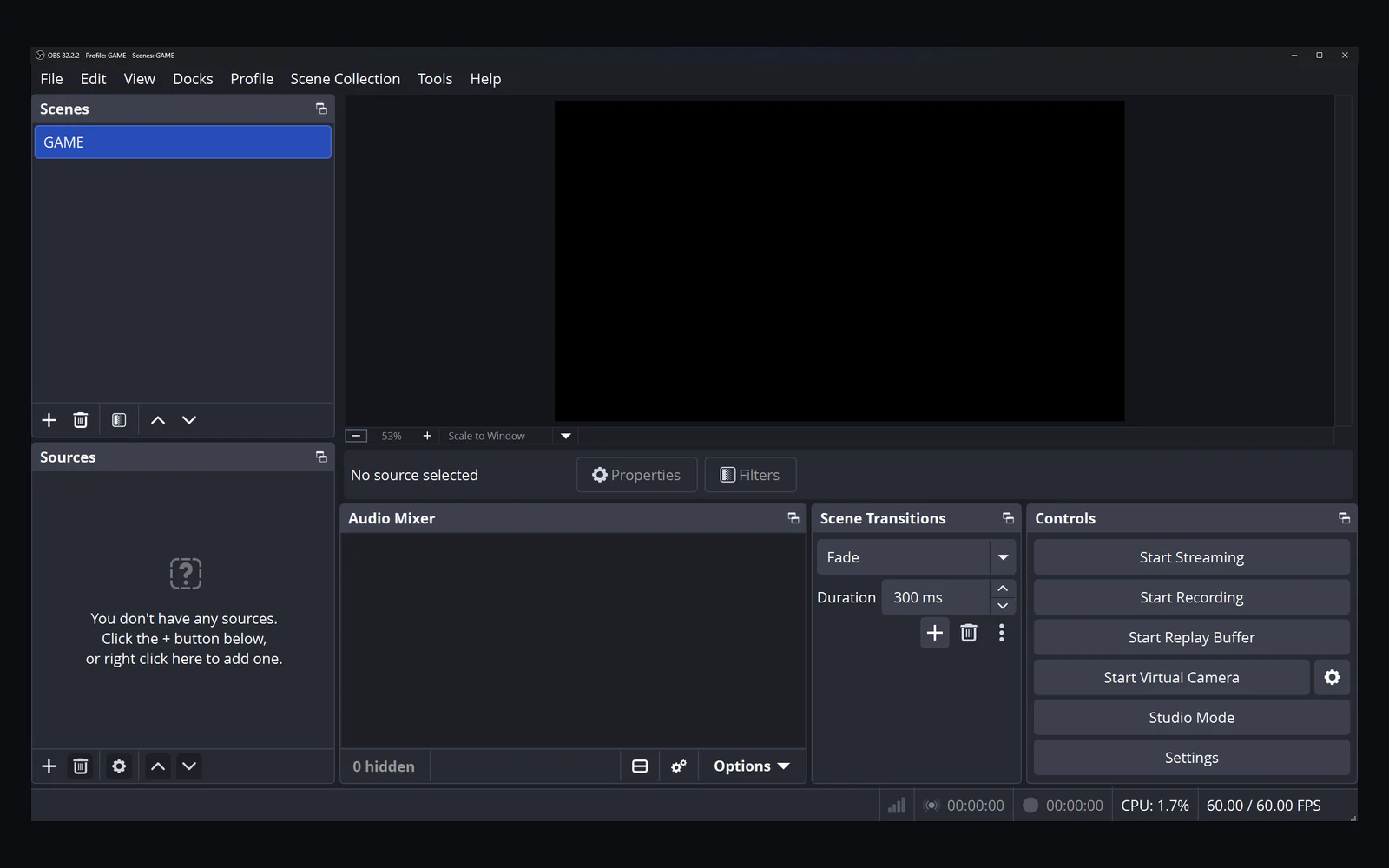
Do not assign your only test key to several OBS actions. A shortcut that saves a replay and changes a scene at the same time makes troubleshooting unnecessarily difficult.
Choose a key around your actual controls
Think about what your hands are doing when the highlight ends. A key that requires releasing every movement control may be inconvenient. A familiar shortcut that is also used by voice chat, an overlay, or your keyboard software may trigger the wrong thing.
Write down the chosen combination and its owner. If you use a keypad, test it with the same Num Lock state you use while gaming. If you use a macro device, first prove the ordinary keyboard shortcut works, then configure the device to send it.
“One hotkey” can mean one shortcut combination; it does not require a single physical key. Choose the least disruptive option for your setup, then keep it consistent.
Test three situations, not just the OBS window
OBS in the foreground: confirm the assignment and recording destination work.
Game in the foreground: confirm the shortcut still reaches the intended application.
Normal gameplay: test while using the movement and modifier keys you normally hold. A combination can behave differently when another modifier is already pressed.
For each test, check the newest file rather than relying only on a notification. Verify that it contains the intended scene and sound. If only the foreground-game test fails, inspect conflicting bindings and the option in Settings → Advanced → Hotkey Focus Behavior: Never disable hotkeys prevents OBS from disabling its hotkeys based on whether its window has focus. It does not resolve shortcut conflicts or guarantee that every game will let OBS receive the shortcut. Do not treat that result as proof that the buffer itself is broken.
The Replay Buffer troubleshooting guide covers the next checks when saving fails.
Using a Clador Forge trigger instead
In Clador Forge, open the trigger settings and choose the keyboard shortcut that saves a moment. By default it is Alt + Numpad 5.2 Decide which application will own the shortcut: native OBS saving or the Clador Forge trigger. Avoid configuring the same combination to independently trigger both unless you have deliberately tested that setup.
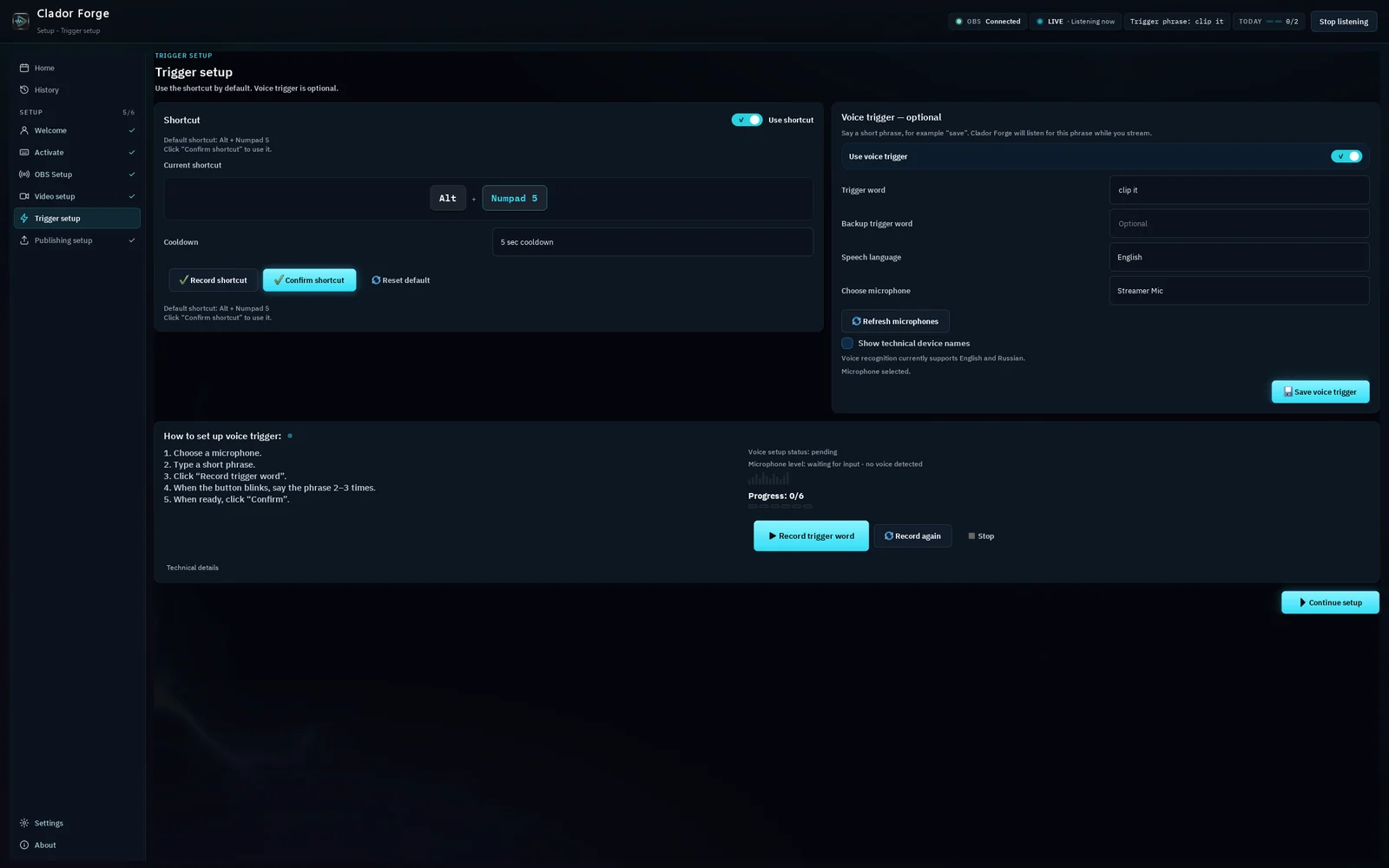
If you prefer, turn on the voice trigger and save a moment with a spoken command. Clador Forge makes a vertical short from the saved moment. It places your gameplay and webcam, adds captions, and writes a title, a description and hashtags. The short appears as a card in the app's calendar, at the next free publishing time. If today's times are taken, it goes to the next free one. At the scheduled time, the short is published automatically: you do not need to press anything. A short can be up to 30 seconds long on Creator Starter and up to 90 seconds on Creator Pro; a clip that exceeds your plan's length limit waits in the calendar until you trim it to fit that limit. See the product guide and the plans.
Start with the app's connection and trigger guide. Verify a real saved moment reaches the app before expecting downstream clip preparation. Do not infer that a working keyboard binding proves captions, framing, and publishing are already configured.
After the save, review the moment
A successful capture is not automatically a useful Short. Keep the lead-in that explains the play, remove dead time, and check whether the action remains visible in a vertical frame. Do not publish private chat or someone else's material simply because it was captured accidentally.
Continue with turning OBS replays into YouTube Shorts when the saving routine is reliable.
Frequently asked questions
Can I recover a moment from before the buffer started?
Not through this workflow. The hotkey can only save footage the running buffer has captured.
Is there one default key everybody should use?
No single choice fits every game, keyboard, and accessibility need. Assign a key deliberately and test it instead of assuming a default.
Do I need a third-party app just to save an OBS replay?
No. OBS has native replay-saving hotkeys.1 A tool such as Clador Forge addresses additional steps after capture; it is not a prerequisite for this basic save action.